Getting Started
Set up your move in under 2 minutes
Your First 5 Minutes with BoxBuddy
Let's get your move organized right from the start!
-
Set Your Moving Date
Open the app and tap the Settings gear icon (⚙️) in the top-right corner. Enter your moving date to start your countdown! BoxBuddy will track how many days you have left and keep you on schedule.
-
Set Up Your Rooms
In Settings, tap "Manage Rooms" to add the rooms in your new home. Each room gets a unique color, making it easy to spot which boxes go where on moving day. You can add rooms like "Kitchen Upstairs," "Bedroom Jake," or "Garage."
-
Add Your First Box
Tap the big orange "+" button at the bottom of the screen. Follow the simple wizard: select a room, snap photos of contents, describe what's inside (type or use voice!), and set priority. Done!
-
Print Your Labels
Head to the Print tab, select your boxes, choose your label style (Fun or Stealth), and print. Stick the QR code on your box — now anyone can scan it to see what's inside!
-
You're Ready to Move!
Keep adding boxes as you pack. On moving day, use the Scan feature to instantly find any box. Your movers will love you, and unpacking will be a breeze. 🎉
Pro Tip: Start Early!
Begin packing items you rarely use 6–8 weeks before your move. Mark these boxes with lower priority (Priority C) so you know they can wait to be unpacked.
Home Screen
Your moving command center
Moving Countdown Dashboard
Track your progress at a glance
The Home screen is designed to give you everything you need without hunting through menus. Here's what you'll find:

Watch: BoxBuddy Home Screen Tour — Every Box, By Room (1:35)
The big green circle shows exactly how many days until your move. Below it, you'll see your moving date and a progress bar showing milestones at 1 month, 2 weeks, and 1 week out. The "Tracking Active" badge confirms BoxBuddy is counting down with you!
Three colorful cards give you one-tap access to the most common tasks:
- Add Box (orange) — Start packing a new box
- Search (green) — Find any item across all your boxes
- Print (purple) — Generate labels for your boxes
Each card features BoxBuddy in a different pose, adding personality to your moving experience!
BoxBuddy serves up 35 expert moving tips, one each day. Tips like "Fill empty spaces with socks or linens" help you pack smarter. Use the arrows to browse all tips, or let them surprise you daily.
A horizontal carousel shows all your rooms with packing progress. Each room card displays:
- Room icon and color
- Number of boxes (e.g., "0/3")
- Room name
- Packed status
Swipe left/right to see all rooms. Tap any room to see its boxes!
Jot down moving-related reminders without leaving the app. Need to remember to call the cable company? Find a new dentist near your new place? Add it here! Notes show the date added and can be checked off when complete. There's even a print button to take your notes with you.
Generate a complete PDF report of all your boxes organized by room. Perfect for insurance documentation, sharing with movers, or keeping a paper backup. Tap the download button to export your entire inventory instantly!
Partner recommendations to make your move easier:
- Avery Labels — Print QR labels at home with high-quality label sheets
- Moving Boxes — Quality boxes in all sizes delivered to your door
These partners are hand-selected to complement your BoxBuddy experience.
Add a Box
The heart of BoxBuddy — capture your contents in seconds
The Box Creation Wizard
Four simple steps guided by a progress bar
When you tap the + button, you'll see a friendly wizard with four steps shown at the top: 🏠 Room → 📷 Photos → 🎤 Description → 🏷️ Label. Let's walk through each one:

Watch: How to Add a Box in BoxBuddy — Step-by-Step (1:02)
-
🏠 Which Room?
First things first — where does this box belong? Tap the dropdown to select a room from your list. Each room has a unique color dot for easy identification. Haven't set up rooms yet? Tap "Manage rooms" to add them right from this screen.
Be specific with room names! Instead of just "Bedroom," try "Bedroom Jake" or "Primary Bedroom" so movers know exactly where to put each box.
-
📷 Snap Photos
Open your box and photograph what's inside! Tap the dashed camera square to take a photo. You can add up to 5 photos per box — perfect for capturing different layers or angles. Photos appear on your printed labels as handy thumbnails.
Photo Tips
Good lighting makes a difference! Take photos before closing the box. Include shots of fragile items and valuables for insurance documentation.
-
🎤 Describe It
What's inside? You have two options:
Voice-to-text is perfect when your hands are full of packing tape. Just describe what you see: "Kitchen utensils, spatulas, wooden spoons, the good cheese grater..."
-
🏷️ Set Priority & Details
The final step lets you add important metadata to your box:
Priority Levels
🔴 Priority A — First Day Essential 🟠 Priority B — First Week 🟢 Priority C — Unpack LaterFragile Setting
Toggle the ⚠️ Fragile option for boxes containing breakables. This displays prominently on your labels!
Priority A = Moving Day Survival Kit
Mark boxes with toiletries, phone chargers, medications, a change of clothes, and basic kitchen supplies as Priority A. These are your "open first" boxes!
Box IDs Are Automatic!
BoxBuddy automatically assigns each box a unique ID like "Kitchen-001" or "Bedroom Jake-003". This makes it easy to reference specific boxes when talking to movers or family members.
Print Labels
Beautiful, scannable labels for every box
Label Customization
Choose your style and layout
Label Styles
Labels Per Box
Print 1–4 copies of each label. Great for putting labels on multiple sides of a box!
Page Layouts
Selecting Boxes to Print
The Print screen shows all your boxes organized by room. You can:
- Tap "All" to select every box
- Tap "None" to clear selection
- Tap individual boxes to select/deselect
- Expand room sections to see boxes within
Each box entry shows its ID, name, priority badge, fragile warning if set, and photo count. The QR icon on the right lets you preview that box's label.
What's on a Label?
Public
Laundry-001
Contents: Stuff from around the house
Room Colors = Instant Recognition
The header bar matches your room's color. On moving day, movers can sort boxes by color at a glance — no reading required!
QR Scanner
Scan • Find • Unpack
Finding Boxes Instantly
Your moving day secret weapon
The QR Scanner is where BoxBuddy really shines. Whether you're a mover figuring out where a box goes, or you're desperately searching for the coffee maker on day one — just scan and know.

Watch: How to Scan a QR Code Label in BoxBuddy (0:26)
How to Scan
-
Open the Scanner
Tap the Scan tab in the bottom navigation. The camera viewfinder opens automatically.
-
Point at the QR Code
Hold your phone 6–12 inches from the label. Make sure the QR code is well-lit and not wrinkled. Center it in the scanning frame.
-
View Box Details
BoxBuddy instantly shows you the box contents, photos, room destination, priority level, and whether it's fragile. No typing, no searching!
Scanning Tips for Best Results
- Hold your phone steady about 6–12 inches from the QR code
- Make sure the QR code is well-lit and not wrinkled
- Center the QR code within the scanning frame
- If scanning fails, try smoothing out the label or improving lighting
Public vs. Private QR Codes
In Privacy & Labels settings, you can control whether your QR codes are:
Moving Day Pro Tip
Set up a "scanning station" at your new home's entrance. As boxes come off the truck, one person scans each box and directs movers to the correct room based on the color and room name that appears!
Family Sharing
Invite your household to one shared move (iOS 2.1.0+)
How Family Sharing Works
Requires the Family plan to send invites. Invited members can join with a free account. Full overview →
-
Open Move Sharing
In the app, go to Settings (⚙️) and find Move Sharing. You must be the move owner on a Family plan.
Screenshot pending:
/help/screenshots/family-sharing-settings.png -
Send an email invite
Enter the email address of your partner or helper. BoxBuddy sends a link (
boxbuddy.tech/invite/…). Invites expire after 14 days.Screenshot pending:
/help/screenshots/family-sharing-invite.png -
They accept on iPhone
The invitee taps the link, signs in (or creates a free BoxBuddy account) with the same email, and joins the shared move.
Screenshot pending:
/help/screenshots/family-sharing-accept.png -
Pack and search together
Editors can add and update boxes. Viewers can browse and search. Everyone sees the same inventory update in real time.
Not the same as Apple Family Sharing
Apple Family Sharing shares an App Store purchase. BoxBuddy move sharing is an in-app shared inventory — separate logins, one box list. See pricing for plan details.
Settings
Customize your BoxBuddy experience
All Settings Explained
Tap the gear icon (⚙️) from any screen to access Settings
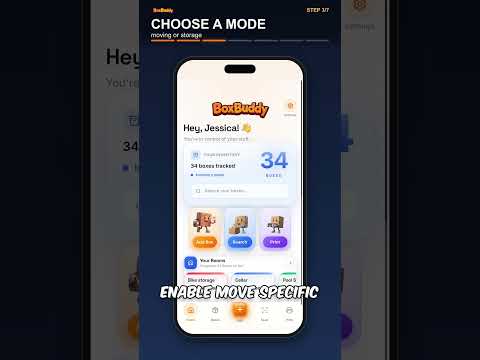
Watch: BoxBuddy Settings Walkthrough — Set Up Your Move (1:58)
View and manage your BoxBuddy plan. See whether you're on the Single User or Family Plan, your billing status, and upgrade or downgrade options. Account Owners have full access to subscription management.
Step-by-step visual guides built right into BoxBuddy. Four interactive walkthroughs show you exactly how to:
- Add a Box — Tap the + button, pick a room, snap photos, describe by voice, and set priority
- Search for a Box — Open the Boxes tab, type a keyword, and find matching boxes instantly
- Scan a Box — Open the scanner, aim at a QR label, view or share the box details
- Print Labels — Go to Print, pick a layout, select boxes, and generate a PDF
Set your target moving date here. This powers the countdown on your Home screen and helps BoxBuddy deliver timely tips as your move approaches. You can change this anytime if plans shift!
Enter your new address. This is optional but helpful for keeping all your move details in one place. It appears on your inventory PDF export.
Add, edit, or remove rooms for your new home. Each room gets:
- A custom name (e.g., "Kitchen Upstairs," "Bedroom Jake")
- A unique color for quick visual identification
- An icon to represent the room type
The number of rooms shows in the section description (e.g., "11 rooms in My Move").
Choose how you use BoxBuddy:
- Moving Mode — Full features with countdown, tips, and all packing tools. Description shows "Currently set for an active move"
- Storage / Inventory Mode — For long-term inventory tracking without the moving countdown. Description shows "Currently set for long-term storage"
The section icon changes dynamically — a truck for Moving mode, an archive box for Storage mode.
Configure how your labels are printed:
- Include QR code — Toggle whether a scannable QR code appears on each label
- Include BoxBuddy logo — Toggle whether the BoxBuddy logo appears on printed labels
You can also:
- Set Up Printer — Select and test your AirPrint or Wi-Fi printer (iOS)
- Get Avery Labels — Link to recommended label sheets tested with BoxBuddy
- Download Box Inventory — Generate a PDF inventory of all boxes organized by room
Control what information appears on your printed labels for privacy:
- Show address on labels — Include your address on printed box labels
- Show phone number — Add your contact number to labels
- Show box contents — List keyword tags and descriptions on the label (e.g., "Plates, Cups, Mugs"). Turn this off for privacy so strangers can't see what's inside
- Show room name — Display the destination room on the label
- Show photos on labels — Include photo thumbnails on printed labels. When off, a camera placeholder icon is shown instead
- Default QR link type — Choose whether QR codes are Public (anyone can scan and view) or Private (only you can view after scanning)
Customize your dashboard and alerts:
- Show countdown — Display days until moving day on dashboard
- Moving day reminders — Get notified as moving day approaches
- Daily moving tips — Receive helpful packing tips
- Packing progress updates — Weekly summary of your progress
Track your milestones and find hidden surprises! Earn achievements as you pack, scan, and organize your move. Keep an eye out for secret achievements — there may be more than meets the eye! 🎉
You're already here! 😄 Access this Help Center, contact support, submit feedback, or view our Privacy Policy and Terms of Service. Links include:
- How to Use BoxBuddy
- How QR Codes Work
- Printing Tips
- Contact Support
- Send Feedback
Tips & Tricks
Moving wisdom from packing pros
BoxBuddy Power User Tips
Get the most out of every feature
Photograph Before Packing
Take photos of items laid out BEFORE putting them in the box. Clearer photos make finding things easier later.
Voice While You Pack
Use voice-to-text to describe items as you pack them. "Blue mixing bowls, wooden cutting board, that whisk Grandma gave us..."
Multiple Labels Per Box
Print 2–3 copies and put labels on different sides. No matter how the box lands, the label is visible!
Color-Code by Priority
Use Priority A (red) for essentials. Tell movers: "Load red labels LAST so they come off the truck FIRST!"
Export for Insurance
Download your inventory PDF and email it to yourself before the move. It's perfect documentation if anything gets damaged.
Quick Notes = Brain Dump
Use Quick Notes for every random thought: "Cancel gym membership," "Get change of address forms," "Measure couch for new living room."
The Golden Rule of Packing
Pack a "Day 1 Survival Box" with Priority A: toiletries, phone chargers, medications, a change of clothes, toilet paper, paper towels, basic cleaning supplies, trash bags, and snacks. Mark it clearly and keep it with you (not on the moving truck)!
Frequently Asked Questions
Quick answers to common questions
Any standard home printer works! BoxBuddy generates PDF labels that print on regular letter-size paper. For best results, use Avery labels (we recommend 8.5" x 11" sheets with 2 labels per page). You can also print on regular paper and use tape to attach labels.
It depends on your Privacy settings! With "Public" QR codes, anyone with a smartphone can scan and see the box contents — perfect for movers and helpers. With "Private" codes, only you (logged into BoxBuddy) can view the details.
Absolutely! Go to the Boxes tab, find your box, and tap to open it. You can edit the description, add/remove photos, change the room, or update priority at any time. If you've already printed labels, just print updated ones after making changes.
With BoxBuddy, you can add as many boxes as your move requires! Whether you're packing a studio apartment or a 5-bedroom house, we've got you covered. Photos are stored efficiently so they don't eat up your phone storage.
Yes! Your boxes, photos, and settings sync to the cloud automatically. If you get a new phone or accidentally delete the app, just log back in and everything will be there. We also recommend downloading your inventory PDF as an extra backup.
Perfect use case! Go to Settings → Moving or Storage? and switch to Storage / Inventory mode. This removes the moving countdown and adjusts the interface for long-term inventory management. Great for attics, basements, storage units, or seasonal items.
Yes! With Family Sharing (Family plan), the move owner invites partners and helpers by email. Each person uses their own BoxBuddy account on the same shared move — editors add boxes, viewers search. Free accounts can join when invited. Learn more →